# Flutter plugin quick start
This guide describes how to integrate Fraud Prevention into your Flutter application. It helps you set up the Mosaic Flutter plugin, enabling you to enhance your mobile applications' security with Fraud Prevention services.
Note
Client-side integrations are recommended for POCs and testing. For production environments, consider implementing [Backend integration](/guides/risk/quick_start_backendapi). Learn more about integration options: [Client-side integration vs Backend integration](/guides/risk/integration_clientside_vs_backend).
## How it works
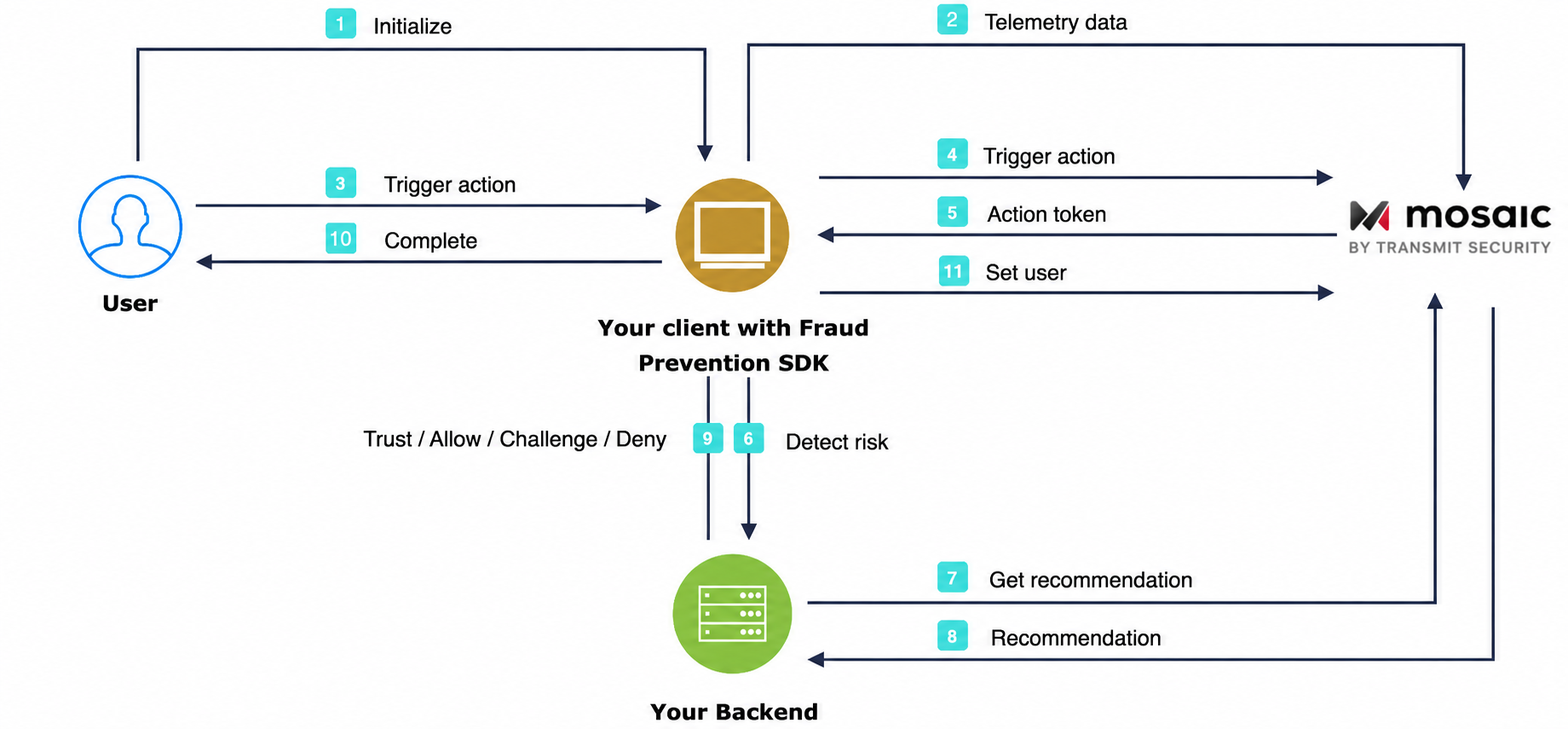
The flow starts with the user navigating to the app (1). The plugin gets initialized and starts sending telemetry to Mosaic (2). When a user performs an action, for example, clicks a login button (3), the plugin triggers an action event (4) and obtains an action token (5) which then forwards to the backend (6). Having received an action token, the application backend uses it to fetch recommendation from Mosaic (7 & 8) and instructs the client to act accordingly (9) in order to complete the login procedure (10). Upon successful login, the client sets the user (11).
## Requirements
- Flutter 3.0.0 or higher
- iOS 13.0 or higher
- Android API level 24 (Android 7.0) or higher
- Dart 2.17.0 or higher
## Before you start
Ensure that **Fraud Prevention** is enabled as the risk engine for your tenant. Identity Threat Protection and Fraud Prevention are mutually exclusive—contact your Customer Success Manager to enable the appropriate engine.
## Step 1: Get client credentials
div
div
Admin Portal
Client credentials are used to identify your app and generate access tokens for authorizing Mosaic requests. To obtain them, you'll need to create an application in the [Admin Portal](https://portal.transmitsecurity.io/) (if you don't have one yet).
1. From **Applications**, click **Add application**.
2. Add the friendly application name to display in the Admin Portal.
3. Add an OIDC client, specify the client secret as an authentication method, and your website URL as a redirect URI (e.g., `https://your-domain.com`).
Note
These fields are required for all Mosaic apps, but won't be used for Fraud Prevention.
1. Click **Add** to create your application. This will automatically generate your client credentials.
## Step 2: Install the plugin
div
div
Client
Add the Mosaic Flutter plugin to your `pubspec.yaml`:
```yaml
dependencies:
flutter_ts_account_protection:
git:
url: https://github.com/TransmitSecurity/flutter_ts_account_protection.git
ref: 1.0.0
```
Then run:
```bash
flutter pub get
```
## Step 3: Configure the plugin
div
div
Client
Android
### Add Maven repository
Add the Transmit Security Maven repository to your module-level `android/build.gradle`:
```gradle
allprojects {
repositories {
google()
mavenCentral()
maven {
url "https://transmit.jfrog.io/artifactory/transmit-security-gradle-release-local/"
}
}
}
```
### Update build.gradle
In your `android/app/build.gradle`, set the minimum SDK version:
```gradle
android {
compileSdkVersion 34
defaultConfig {
minSdkVersion 21
targetSdkVersion 34
}
}
```
### Update AndroidManifest.xml
Add to your `android/app/src/main/AndroidManifest.xml`:
```xml
```
### Update strings.xml
Add to `android/app/src/main/res/values/strings.xml`:
```xml
"CLIENT_ID"
https://api.transmitsecurity.io/risk-collect/
```
Use the appropriate base URL for your environment:
| Environment | Base URL |
| --- | --- |
| US | `https://api.transmitsecurity.io/risk-collect/` |
| EU | `https://api.eu.transmitsecurity.io/risk-collect/` |
| Canada | `https://api.ca.transmitsecurity.io/risk-collect/` |
| Australia | `https://api.au.transmitsecurity.io/risk-collect/` |
| Custom domain | `https:///risk-collect/` |
iOS
The iOS SDK requires iOS 13.0 or higher. The native SDK is included via Swift Package Manager—no additional configuration is required.
### Create TransmitSecurity.plist
Create a file named `TransmitSecurity.plist` in `ios/Runner/` and add the following content:
```xml
clientId
[CLIENT_ID]
baseUrl
https://api.transmitsecurity.io/risk-collect
```
Use the appropriate base URL for your environment:
| Environment | Base URL |
| --- | --- |
| US | `https://api.transmitsecurity.io/risk-collect/` |
| EU | `https://api.eu.transmitsecurity.io/risk-collect/` |
| Canada | `https://api.ca.transmitsecurity.io/risk-collect/` |
| Australia | `https://api.au.transmitsecurity.io/risk-collect/` |
| Custom domain | `https:///risk-collect/` |
## Step 4: Initialize the plugin
div
div
Client
Import the package and create an instance of the plugin:
```dart
import 'package:flutter_ts_account_protection/flutter_ts_account_protection.dart';
final accountProtection = FlutterTsAccountProtection();
```
Initialize the plugin when your app starts. Choose one of the following options:
**Option A: Simple initialization (recommended)**
Uses the platform-specific configuration files created in [Step 3](#step-3-configure-the-plugin):
```dart
await accountProtection.initializeSDK();
```
**Option B: Initialize with explicit parameters**
```dart
await accountProtection.initialize(
'CLIENT_ID',
'https://api.transmitsecurity.io/risk-collect/',
configuration: TSInitSDKConfiguration(
enableLocationEvents: true,
),
);
```
The optional configuration object accepts the following properties:
| Property | Type | Description |
| --- | --- | --- |
| `enableLocationEvents` | `bool` | Enables reporting device location during plugin initialization and when the app moves to the foreground. Default: `false`. The user must consent to sharing location in advance (see [Track geolocation](/guides/risk/report_geolocation)). |
Backend integration
Start a plugin session and obtain a device session token after plugin initialization and prior to triggering events, and persist it on your backend. This step is optional for client-side integration but **strongly recommended** as it allows you to transition to the [backend integration](/guides/risk/quick_start_backendapi)—a device session token is needed to trigger events from the backend and binds the user's interactions to their device.
```dart
final sessionToken = await accountProtection.getSessionToken();
```
## Step 5: Wire navigation observer
div
div
Client
Page-load telemetry is captured through the plugin's built-in navigation observer. If you do not wire this observer, page-load events will not be collected.
Attach `DrsCore.navigationObserver` to your app's navigator:
```dart
import 'package:flutter/material.dart';
import 'package:flutter_ts_account_protection/flutter_ts_account_protection.dart';
class MyApp extends StatelessWidget {
const MyApp({super.key});
@override
Widget build(BuildContext context) {
return MaterialApp(
home: const HomePage(),
navigatorObservers: [DrsCore.navigationObserver],
);
}
}
```
If your app uses a router package, attach `DrsCore.navigationObserver` to the router's navigator observers in the same way.
## Step 6: Use the Flutter plugin
div
div
Client
The example below demonstrates triggering a login event from a login button, setting and clearing a user.
Note
For an alternative approach that directly utilizes our backend API instead, refer to our [Backend API implementation](/guides/risk/quick_start_backendapi#step-4-trigger-actions) guide.
- `triggerAction()` receives an action type and returns a response that includes the `actionToken` that you should pass to the backend. To obtain risk recommendations for sensitive actions, your application should report these actions. To do this, add the code below to relevant user interactions (such as the Login button tap handler). The plugin allows reporting on events with specific action types. Replace `[ACTION_TYPE]` with the appropriate action type from our [list of actions](/guides/risk/recommendations).
- To improve Fraud Prevention, optionally pass the correlation ID, and claimed user ID and its type (for users that haven't authenticated yet).
- To report precise device location, add `locationConfig` to the call (the user has to consent to sharing location in advance, see [Track geolocation](/guides/risk/report_geolocation)).
- `customAttributes` is an optional map that adds context to an action but must match the schema defined in the Portal. Invalid attributes are ignored (see [Custom attributes](/guides/risk/action-attributes)).
```dart
import 'package:flutter_ts_account_protection/flutter_ts_account_protection.dart';
final accountProtection = FlutterTsAccountProtection();
void handleTriggerActionLogin() async {
final result = await accountProtection.triggerAction(
TSAction.login.name,
options: TSActionEventOptions(
correlationId: 'CORRELATION_ID',
claimedUserId: '91e25bea0c...', // hashed email
claimedUserIdType: TSClaimedUserIdType.email,
referenceUserId: 'REFERENCE_USER_ID',
),
locationConfig: TSLocationConfig(
mode: 'default',
),
customAttributes: {
'userLevel': 'premium',
},
);
final actionToken = result.actionToken;
print('Action Token: $actionToken');
}
```
- `setAuthenticatedUser()` sets the user context for all subsequent events for the session (or until the user is explicitly cleared). It should be called only after you've fully authenticated the user (including, for example, any 2FA that was required). For the complete list of action types, see our [recommendations](/guides/risk/recommendations#action-types) page.
```dart
await accountProtection.setAuthenticatedUser(username);
```
- `clearUser()` clears the user context for all subsequent events in the mobile session. The user gets automatically cleared once the session expires or in case of a login action.
```dart
await accountProtection.clearUser();
```
- `getSessionToken()` returns a session token needed for triggering events from the backend.
```dart
final sessionToken = await accountProtection.getSessionToken();
```
## Step 7: Fetch recommendations
div
div
Backend
You can fetch recommendations for the reported action using the [Recommendation API](/openapi/risk/recommendations.openapi/other/getriskrecommendation). This is the same API that's also used for mobile integrations.
Mosaic APIs are authorized using an OAuth access token so you'll need to fetch a token using your client credentials (from Step 1). To do this, send the following request:
```javascript
const resp = await fetch(
`https://api.transmitsecurity.io/oidc/token`,
{
method: 'POST',
headers: {
'Content-Type': 'application/x-www-form-urlencoded'
},
body: new URLSearchParams({
grant_type: 'client_credentials',
client_id: '[CLIENT_ID]',
client_secret: '[CLIENT_SECRET]'
})
}
);
const { access_token } = await resp.json();
```
From your backend, invoke the Recommendation API by sending a request like the one below. The `[ACCESS_TOKEN]` is the authorization token you obtained using your client credentials and `[ACTION_TOKEN]` is the `actionToken` received in Step 6.
```javascript
const query = new URLSearchParams({
action_token: '[ACTION_TOKEN]',
}).toString();
const resp = await fetch(
`https://api.transmitsecurity.io/risk/v1/recommendation?${query}`,
{
method: 'GET',
headers: {
Authorization: 'Bearer [ACCESS_TOKEN]',
},
}
);
```