# Integrate Fraud Prevention with Azure AD B2C (backend integration)
Integrate Fraud Prevention into applications relying on Azure AD B2C as IDP. This describes how to assess sign-in/sign-up attempts for risk and fraud, and respond accordingly using custom policies.
Note
This guide describes the **backend integration approach**, where the B2C custom policy calls APIs directly via REST technical profiles—no Azure Function intermediary required.
For the client-side integration approach using `triggerActionEvent()` and an Azure Function, see [Integrate Fraud Prevention with Azure AD B2C](/guides/risk/integrate_with_azure_b2c).
## How it works
The integration includes the following components:
- **Azure AD B2C tenant**: Authenticates the user and hosts a script that collects device telemetry as users execute a target policy. It blocks or challenges sign-in/up attempts based on the risk recommendation returned by Mosaic.
- **Custom UI templates**: Customizes HTML content of the pages rendered by Azure AD B2C. These pages include the JavaScript snippets required for risk detection.
- **Mosaic data collection service**: Dynamically embedded script that logs device telemetry, which is used to continuously assess risk during user interactions.
- **Mosaic API endpoints**: Triggers action events and provides the risk recommendations based on collected data. Azure AD B2C communicates with Mosaic endpoints directly using a REST technical profile in the custom policy.
The following describes the implementation:
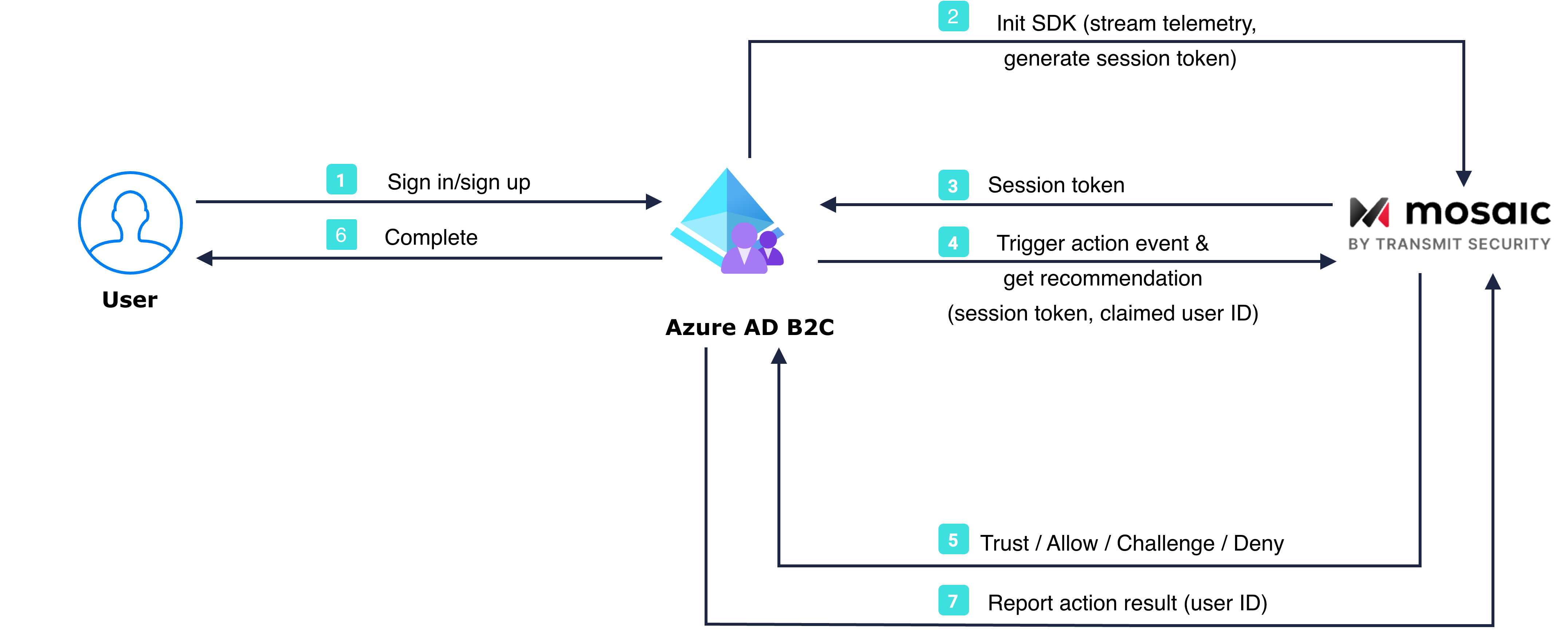
1. The user opens the Azure AD B2C sign-in page.
2. The page initializes the Platform SDK with `enableSessionToken: true`, which starts streaming device telemetry to Mosaic and requests a session token.
3. Mosaic returns a session token and it gets stored in a hidden form field for B2C to pick up as a claim.
4. The B2C custom policy calls the Trigger action event API with `get_recommendation=true`, passing the session token, action type, and claimed user ID.
5. Mosaic returns the risk recommendation inline (challenge/allow/deny) along with an action token.
6. Azure AD B2C validates user credentials and performs additional steps if needed (e.g., MFA) based on the recommendation, and completes authentication procedure.
7. After authentication completes, the B2C custom policy reports the action result back to Mosaic.
## Before you start
To get started, you need:
* A Microsoft Entra subscription. If you don't have one, get a [free account](https://azure.microsoft.com/free/)
* [An Azure AD B2C tenant](https://docs.microsoft.com/en-us/azure/active-directory-b2c/tutorial-create-tenant) linked to the Entra subscription
* [A registered web application](https://docs.microsoft.com/en-us/azure/active-directory-b2c/tutorial-create-tenant) in your Azure AD B2C tenant
* [Azure AD B2C custom policies](https://learn.microsoft.com/en-us/azure/active-directory-b2c/tutorial-create-user-flows?pivots=b2c-custom-policy)
## Step 1: Get client credentials
Client credentials are used to identify your app and generate access tokens for authorizing Mosaic requests. To obtain them, you'll need to [create an application](/guides/user/create_new_application) in the [Admin Portal](https://portal.transmitsecurity.io/) (if you don't have one yet).
From **Applications**, click **Add application** and enter the friendly application name to display in the Admin Portal.
Then open the application's **Clients** tab and [add an OIDC-based User authentication client](/guides/user/manage_clients) for this integration. If prompted, enter your website URL as the redirect URI. Upon saving the client, Mosaic automatically generates the **Client ID** and **Client Secret**.
Note
The redirect URI is required for client setup, but it isn't used in this flow.
## Step 2: Create your custom UI
Start by integrating Fraud Prevention into your Azure AD B2C frontend application. This involves creating a custom sign-in page that integrates the [Platform SDK](/sdk-ref/platform/introduction), and will replace the default Azure AD B2C UI. Once activated, Fraud Prevention returns a session token and starts collecting telemetry data for the user interacting with your app. The session token is stored in a hidden field (`session_token`) for Azure AD B2C to pick up as a claim.
1. Prepare a custom HTML file for your sign-in page based on the [sample templates](https://learn.microsoft.com/en-us/azure/active-directory-b2c/customize-ui-with-html?pivots=b2c-custom-policy#sample-templates) and a separate file with JavaScript code.
Important
Azure AD B2C does not allow executing inline scripts. You must place the JavaScript code in a separate file and reference it from your HTML. Use a `MutationObserver` to detect when B2C injects elements into the DOM, as [recommended by Microsoft](https://learn.microsoft.com/en-us/azure/active-directory-b2c/javascript-and-page-layout?pivots=b2c-custom-policy).
Add the following to your custom HTML file to load the SDK and your custom script, and include a hidden field to hold the session token:
```html
```
Create a separate JavaScript file (`mosaic-drs.js`) with the following code.
```javascript
// Initializes SDK and retrieves a session token
async function initAndGetSessionToken() {
await window.tsPlatform.initialize({
clientId: "[clientId]", // Client ID found in the client settings in Mosaic Admin Portal
drs: {
serverPath: "https://api.transmitsecurity.io/risk-collect/", // Required: Set serverPath based on your region or custom domain
enableSessionToken: true, // Required for backend integration
},
});
// Obtains session token
const sessionToken = await window.tsPlatform.drs.getSessionToken();
document.getElementById("session_token").value = sessionToken;
}
// Uses MutationObserver to detect when B2C injects elements into the DOM
const observer = new MutationObserver(function (mutations, obs) {
const tokenElement = document.getElementById("session_token");
if (tokenElement && window.tsPlatform) {
obs.disconnect(); // Stop observing once element is found
initAndGetSessionToken();
}
});
// Start observing the document body for changes
observer.observe(document.body, {
childList: true,
subtree: true
});
```
Note
`enableSessionToken: true` must be set during initialization for `getSessionToken()` to work. The session token represents the device session established when the SDK initialized—it is passed to the backend Trigger action event API instead of an action token.
1. Host the HTML page and JavaScript file on a Cross-Origin Resource Sharing (CORS) enabled web endpoint by [creating a storage account](https://learn.microsoft.com/en-us/azure/storage/common/storage-account-create?tabs=azure-portal&toc=%2Fazure%2Fstorage%2Fblobs%2Ftoc.json) and [adding CORS support for Azure Storage](https://learn.microsoft.com/en-us/rest/api/storageservices/cross-origin-resource-sharing--cors--support-for-the-azure-storage-services).
## Step 3: Configure custom policies
You can incorporate Fraud Prevention into your Azure B2C application by extending your custom policies.
1. Download the [custom policy starter pack](https://github.com/Azure-Samples/active-directory-b2c-custom-policy-starterpack/archive/master.zip) to get started (see [Create custom policies in Azure AD B2C](https://learn.microsoft.com/en-us/azure/active-directory-b2c/tutorial-create-user-flows?pivots=b2c-custom-policy))
2. Create a new file that inherits from **TrustFrameworkExtensions**, which will extend the base policy with tenant-specific customizations for Fraud Prevention.
```xml
YOUR AZURE TENANTB2C_1A_TrustFrameworkExtensions
```
1. In the `BuildingBlocks` section, define the claims needed for the backend integration:
```xml
Fraud Prevention Session TokenstringTextBoxAction TypestringReadonlyCorrelation IDstringReadonlyClaimed User IDstringReadonlyTransmit Bearer TokenstringReadonlyRisk RecommendationstringReadonlyAction TokenstringReadonly
```
1. In the `BuildingBlocks` section, add a reference to your custom UI:
```xml
YOUR_SIGNIN_PAGE_URL
```
1. In the `ClaimsProviders` section, configure a claims provider that includes the following technical profiles: one (`SelfAsserted-LocalAccountSignin-Email`) that outputs the session token and claimed user ID, and three REST technical profiles that handle obtaining an access token, triggering the action with an inline recommendation, and reporting the action result—all directly from the B2C custom policy.
```xml
Sign in using Fraud Prevention
```
**Get bearer token (client credentials)** — calls the Mosaic token endpoint to obtain an access token using your app's Client ID and Client Secret (stored as B2C policy keys).
```xml
Get Transmit Access Tokenhttps://api.transmitsecurity.io/oidc/tokenNoneFormForm
```
**Trigger action and get recommendation** — sends the session token, action type, correlation ID, and claimed user ID to the [Trigger Action API](/openapi/risk/client-actions.openapi/other/triggeranaction) and retrieves the inline recommendation in a single call.
```xml
Fraud Prevention checks to validate the interaction and devicehttps://api.transmitsecurity.io/risk/v1/action/trigger-action?get_recommendation=trueBearerbearerTokenBodyJsonCollectionstrue
```
**Report action result** — is called after authentication completes to report the outcome back to Mosaic, enabling accurate user profiling and model improvement.
```xml
Report Transmit DRS Action Resulthttps://api.transmitsecurity.io/risk/v1/action/resultBearerbearerTokenBodyJsonCollections
```
**Sign-in profile** — updates `SelfAsserted-LocalAccountSignin-Email` to output the session token and claimed user ID (the email entered by the user) from the sign-in form, and chain the REST profiles as validation steps.
```xml
Local Account SigninSignUpWithLogonEmailExchangeEmailtruefalseapi.selfassertedSign Infalse
```
1. In the `UserJourneys` section, create a new user journey (`SignInDRS` in our example) that identifies the user and performs the appropriate identity protection steps based on the Mosaic risk recommendation. For example, the journey can proceed normally if Mosaic returns 'allow' or 'trust', terminate and inform the user of the issue if 'deny', or trigger a step-up authentication process if 'challenge'.
```xml
recommendationALLOWTRUSTSkipThisOrchestrationSteprecommendationCHALLENGESkipThisOrchestrationSteprecommendationDENYSkipThisOrchestrationStep
```
1. Save the policy file as `DRSTrustFrameworkExtensions.xml`.
2. Create a new file that inherits from the file you just saved. It will extend the SignIn policy that works as an entry point for the Signin and Signup user journeys with Fraud Prevention.
```xml
YOUR AZURE TENANTB2C_1A_DRSTrustFrameworkExtensions
```
1. In the `RelyingParty` section, configure your Fraud Prevention-enhanced user journey (`SignInDRS` in our example).
```xml
AllowPolicyProfile
```
1. Save the policy file as `DRSSignIn.xml`.
## Step 4: Upload the custom policy
Using the directory with your Azure AD B2C tenant, upload the custom policy:
1. Sign in to the [Azure portal](https://portal.azure.com/).
2. In the portal toolbar, select **Directories + subscriptions**.
3. On the **Portal settings | Directories + subscriptions** page, in the **Directory name** list, find the Azure AD B2C directory and then select **Switch**.
4. Under **Policies**, select **Identity Experience Framework**.
5. Select **Upload Custom Policy**, and then upload the updated custom policy files.
## Step 5: Test your custom policy
Using the directory with your Azure AD B2C tenant, test your custom policy:
1. In the Azure AD B2C tenant, and under Policies, select Identity Experience Framework.
2. Under **Custom policies**, select the Sign in policy.
3. For **Application**, select the web application you registered.
4. Select **Run now**.
5. Complete the user flow.