This guide walks you through building a simplistic authentication flow that adapts based on real-time risk indicators using Identity Threat Protection and journeys.
This guide explains how to implement risk-based login using Journeys and Orchestration SDKs.
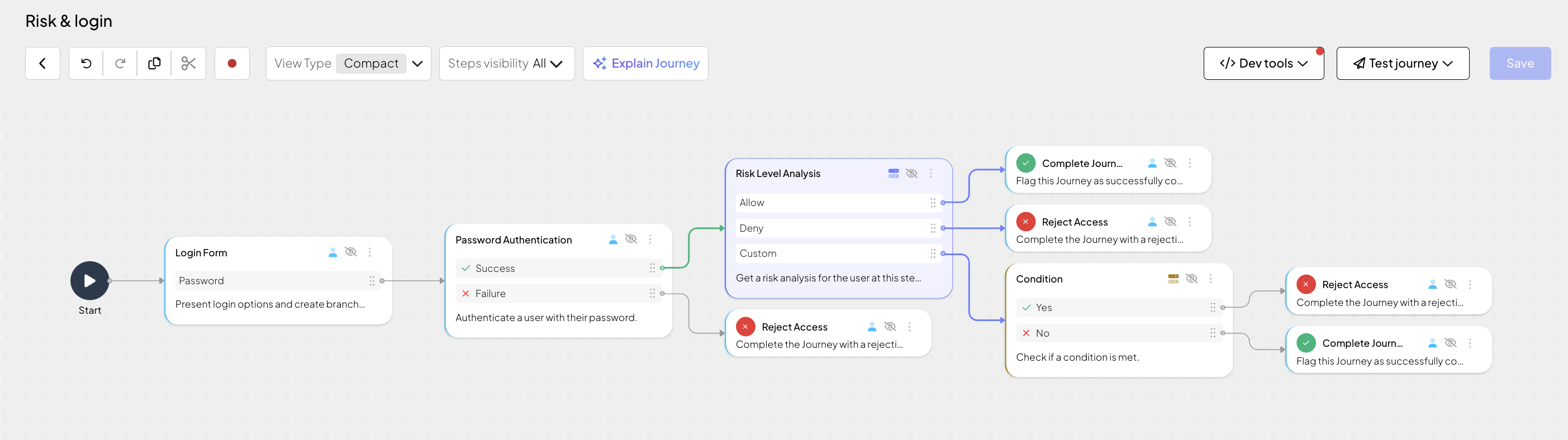
When a user requests to log in to the app, the client invokes the authentication journey (1) and obtains the user credentials (2). After authenticating the user, Mosaic's Identity Threat Protection (3) evaluates the login event and returns a set of discrete risk indicators (4). The risk signals are then evaluated against the rule engine, which maps them to an Allow, Deny, or Custom decision (5). The Risk Level Analysis step branches accordingly, letting you handle each outcome directly in the journey (6).
Identity Threat Protection returns risk indicators. The rule engine maps risk signals to Allow/Deny decisions. If no rule matches, the flow proceeds to the Custom branch where your journey defines how to act on the returned signals.
- If this is your first time integrating with Mosaic, create an application, then open its Clients tab and add a User authentication client configured for OIDC. You'll use its client ID when initializing the SDK later in this guide.
- Ensure that Identity Threat Protection is enabled as the risk engine for your tenant. Identity Threat Protection and Fraud Prevention are mutually exclusive—contact your Customer Success Manager to enable the appropriate engine.
Under Journey Tools > Rules, define allow and deny rules that determine risk decision logic:
- Allow rules: define trusted entities (e.g., known IP ranges, corporate devices) that should bypass risk-based restrictions.
- Deny rules: block access from specific origins or attributes (e.g., TOR exit nodes, flagged devices).
For example, you can create a rule that denies logins from specific locations and a rule that denies logins from devices you consider risky, such as devices with enabled VPN and TOR.
When the Risk Level Analysis step evaluates an interaction, it checks the detected risk signals against these rules. Rules are evaluated in order (1-100) and only the first rule to match will apply. If a rule matches, the step branches to the corresponding Allow or Deny branch. If no rule matches, the step proceeds to the Custom branch.
For details on how to create and manage rules, see Enforce rules.
Rules are optional. If no rules are defined, all interactions proceed to the Custom branch where you can use Condition steps to evaluate risk factors manually.
Journeys handle the business logic responsible for this flow. In the Admin Portal, go to B2C Identity or B2B Identity based on your setup, and open the Journeys section. Create a client SDK journey and store its ID. You'll need to implement some client-side code for this journey later.
You can adapt the journey to match your authentication policy and use case by replacing or adding the authentication steps with the methods you prefer to use.
The example journey collects credentials, authenticates the user using their password, evaluates risk, and then branches based on the rule engine decision. It includes the following steps:
- Login form: Enable password authentication as authentication option and ensure schema collects the user's username (
loginData1.username) and password (loginData1.password). - Password Authentication: Configure the step to use submitted user's credentials for authentication.
- Risk Level Analysis: Enable evaluation for
loginevent. The step evaluates risk and branches based on the rule engine outcome:- Allow (rule-based): A rule matched and allows the interaction—proceeds to the Complete Journey step.
- Deny (rule-based): A rule matched and denies the interaction—proceeds to the Reject Access step.
- Custom: No rule matched—use a Condition step to check for specific risk factors (e.g.,
@std.contains(risk_analysis.risk_result.reasons, "IP_RISKY_REPUTATION")) and branch accordingly.
To run this flow, your integration needs the Orchestration SDK.
Install and initialize the Platform Web SDK. Make sure to initialize Orchestration with collectRiskData: true to enable Identity Threat Protection.
import { ido, initialize } from '@transmitsecurity/platform-web-sdk';

initialize({
  clientId: 'your-client-id',
  ido: {
    serverPath: 'https://api.transmitsecurity.io/ido', // Required: Set serverPath based on your region or custom domain
    collectRiskData: true // Enables Identity Threat Protection
  }
});Configure the SDK to work with your region or custom domain by setting the appropriate serverPath / baseUrl.
In this step, you implement the client-side code needed to complete a risk-aware authentication journey created in Step 3.
You may implement a switch (or other routing mechanism) that invokes a handler responsible for a specific journey step (returned in idoServiceResponse.journeyStepId parameter). Each handler processes data, displays whatever UI is needed, and calls submitClientResponse() when the interaction is concluded.
The journey loops back to the switch unless Mosaic signals journey completion by setting the journeyStepId property to Rejection.type or Success.type. The idoServiceResponse.token property contains a JWT token as a proof of journey completion.
In a nutshell, you'll need to implement:
All steps except the Login Form step in this journey (password authentication, risk evaluation, branching) are handled server-side by Mosaic and do not require any client-side code.
Implement a handler that starts the journey by calling startJourney() with your journey ID.
const idoResponse = await ido.startJourney('YOUR_JOURNEY_ID');The only client-facing step in this journey is the Login Form step, which requests the user's username and password. Your client should present a login form and submit the collected credentials back to the journey using "password" as the branch ID.
function handleLoginForm(idoResponse) {
  const form = document.querySelector('#loginForm');
  const formData = new FormData(form);
  const data = Object.fromEntries(formData.entries());

  ido.submitClientResponse("password", data);
}