Security Insights is a centralized triage workspace in the Mosaic Admin Portal for actionable security insights generated across Mosaic solutions, including Fraud Prevention and Identity Verification. It gives teams a shared view of security activity so they can assess severity at a glance, apply a handling status, assign an owner, get notified on changes, and coordinate the investigation in comments without losing track of what is new, what is already under review, and what has been resolved.
You can find it in Admin Portal > Security Insights, where the workflow starts from the overview page and continues into deeper solution-specific investigation when needed.
Depending on the products enabled in your tenant, Security Insights can surface different insight types, such as fraud campaigns, fraud rings, identity verification alerts, and multisession detections.
For example, if several customer accounts suddenly start showing failed login attempts from the same device cluster or IP range, Security Insights helps your team recognize the pattern quickly, understand how broad the issue is, and decide whether it needs immediate investigation.
- Prioritized triage: insights are sorted by severity from High to Low, so the most urgent items appear first
- Workflow tracking: every insight has a unique identifier and a status, so teams can track the case and see whether something is new, being reviewed, or already handled
- Role-based access: RBAC controls whether admins can view Security Insights or edit insight handling
- Unified view: insights from different product areas appear in one place, with product badges for quick identification
- Bulk operations: update the status of multiple insights or archive them in a single action
- Collaboration: assign an owner, discuss the case in comments, and get an in-app and email notifications when a case you own changes or someone @mentions you
Access to Security Insights is controlled by RBAC. Two permissions cover viewing insights and updating how they are handled:
Read security insightslets admins open Security Insights and review insight details. If a user does not have this permission, the Security Insights menu item is disabled rather than hidden.Edit security insightslets admins update insight handling, including changing status, marking insights as read or unread, and performing bulk actions.
Assignment and comments are permission-controlled as well. Admins with read access can view comments and can be assigned or @mentioned. Who can change the assignee, and who can add or edit comments, is controlled separately. A global admin can delete any comment.
The overview has two views: a table view and a Kanban view.
- In the table view, you scan insights in a list and run bulk actions.
- In the Kanban view, insights are grouped by status into Pending review, In review, Resolved, and Dismissed. Drag a card to another column to change its status. Each card shows the severity, product area, assignee, and whether the insight is unread.
Security Insights supports a simple investigation workflow:
- Open the Overview page. Use the table view to scan insights by Mosaic module (type), severity, and status, or switch to the Kanban view to see them grouped by status.
- Prioritize the cases that need attention first. For example, order the cases by status.
- Open an insight to review the first evidence in the side panel, including the audit trail.
- From the side panel, click More details to access the relevant product page and review deeper details about the case. For example, a Fraud Prevention insight may open a fraud campaign page, while an Identity Verification insight opens the verifications page filtered to the affected sessions, both with all due details.
- Decide whether follow-up action is needed, such as reviewing related events, checking verification evidence, tuning detection behavior, or triggering a response workflow.
- Update the insight status so the rest of the team can see what is in progress, what is resolved, and what can be dismissed. Assign an owner or leave a comment when the team needs to know who is handling the case and what was found.
The identifier is useful throughout this flow because it acts as the case number for the insight across search, logs, and audit history.
Every status change is recorded in the audit trail and the admin activity log with the insight ID, previous status, new status, actor, and timestamp. Assignment changes and comment actions are recorded in the same audit trail.
Security Insights lets a team own a case, discuss it, and stay informed from the same workspace.
- Assignment: Assign an owner so the team knows who is handling the insight. You can assign it to yourself, reassign it to another admin who can view Security Insights, or clear the assignment. You can filter the overview by assignment status.
- Comments: Add a comment to record what you found or to ask a teammate to review the case. @mention another admin in the tenant to notify them. You can edit your own comments, and the edit history stays visible to anyone who can view the insight. A global admin can delete any comment.
- Notifications: Mosaic sends an in-app notification when an insight is assigned to you or reassigned away from you, when another admin changes the status or adds a comment on an insight you own, and when someone @mentions you.
Fraud Prevention insights route you to a dedicated page based on the signal type. Campaign-based signals open a fraud campaign overview page, while ring-based signals open a fraud ring page.
The audit trail shows the review history of the insight, including who changed its status, when the change happened, and the resulting status. It is available in the side panel and helps teams maintain accountability while they work through a queue.
A fraud campaign is a cluster of related events that, taken together, suggest coordinated suspicious activity. Unlike the ring view, which focuses on relationships between entities, the campaign view focuses on the activity itself: event volume, event velocity over time, the signals that drove the detection, and the entities most involved.
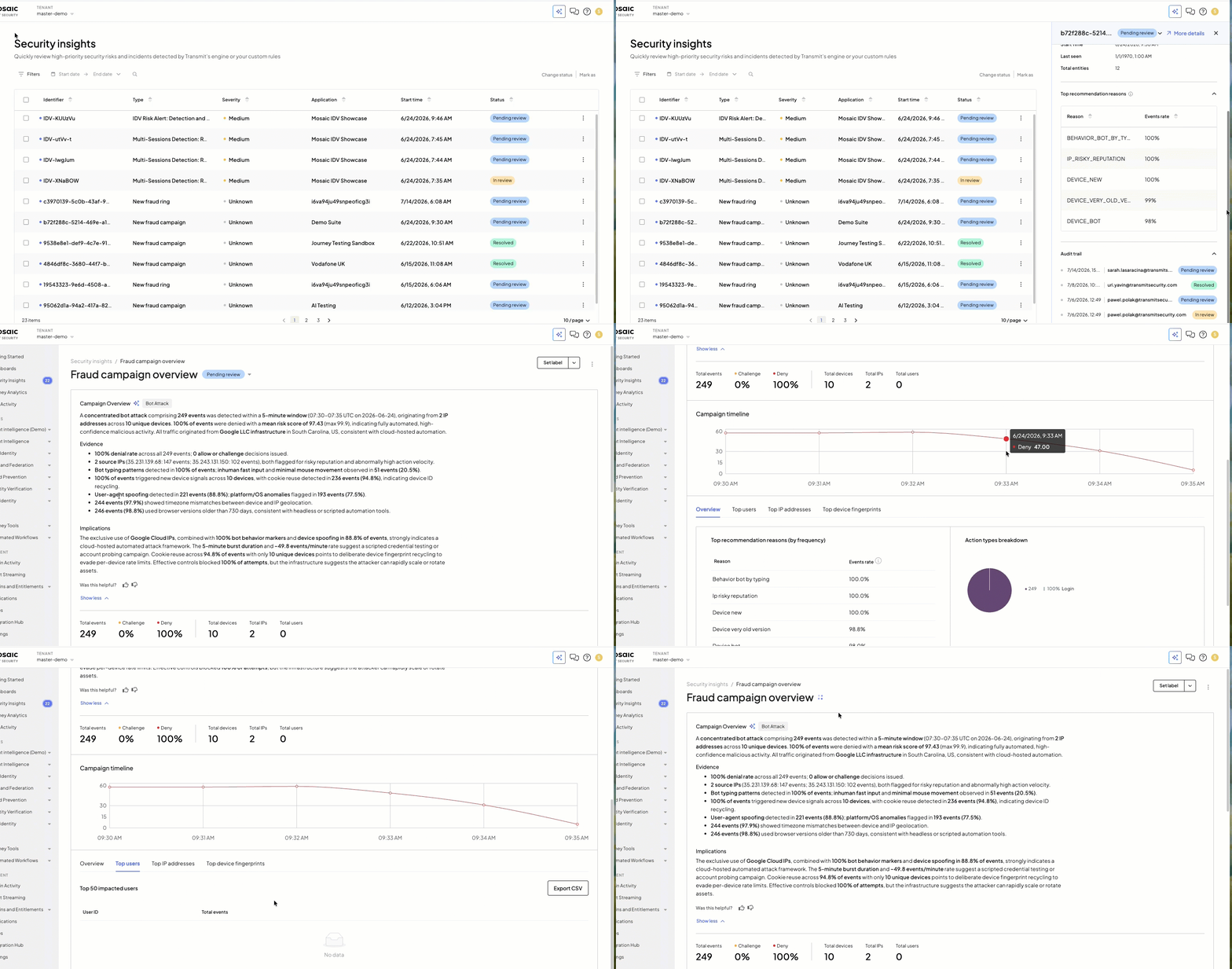
The campaign summary gives you a narrative explanation of the case. It helps you understand:
- The likely pattern behind the activity, such as automated or coordinated behavior
- The main evidence that led to that conclusion
- The likely implications of the activity and the kinds of follow-up it may require
On this page, you can:
- Read the Spark AI-generated campaign summary to understand what the platform detected and why it was flagged
- Use the KPI strip and the campaign timeline to assess campaign size, duration, and pace, and to see whether the activity is concentrated in a short burst or spread out over time
- Use the
Overviewtab to review the main recommendation drivers and the overall shape of the campaign, including high-level distributions across actions, outcomes, and countries - Use the entity tabs to identify which users, IP addresses, and device fingerprints appear most often in the campaign and which actors are most prominent in the activity
Some entity tabs may be empty when that dimension is not relevant to the case, for example when a campaign is driven by IPs and devices rather than specific user accounts.
A fraud ring highlights a group of related entities, such as users, devices, and IPs, that the platform has linked through suspicious behavior. It helps investigators understand how those entities are connected and whether a broader network is involved. In this view, each node in the graph represents one actor in the ring.
Use the graph to:
- Understand the structure of the ring and quickly spot central entities
- Click individual nodes to inspect a specific IP address, device ID, or user ID in more detail
- Follow the links between nodes to see how the entities are related and whether the signal points to broader coordinated activity
The panel on the right gives you the context you need to interpret the graph. It summarizes:
- The overall activity context, such as how large the ring is and the time window in which it was active
- The riskiest or most connected entities, so you can quickly see which actors appear to be central to the ring
- The most recent recommendations or actions associated with the ring, so you can connect the network view back to what the platform is seeing operationally
Identity Verification insights narrow the investigation to the affected verification sessions and then connect you to the Identity Verification module in Mosaic for deeper analysis.
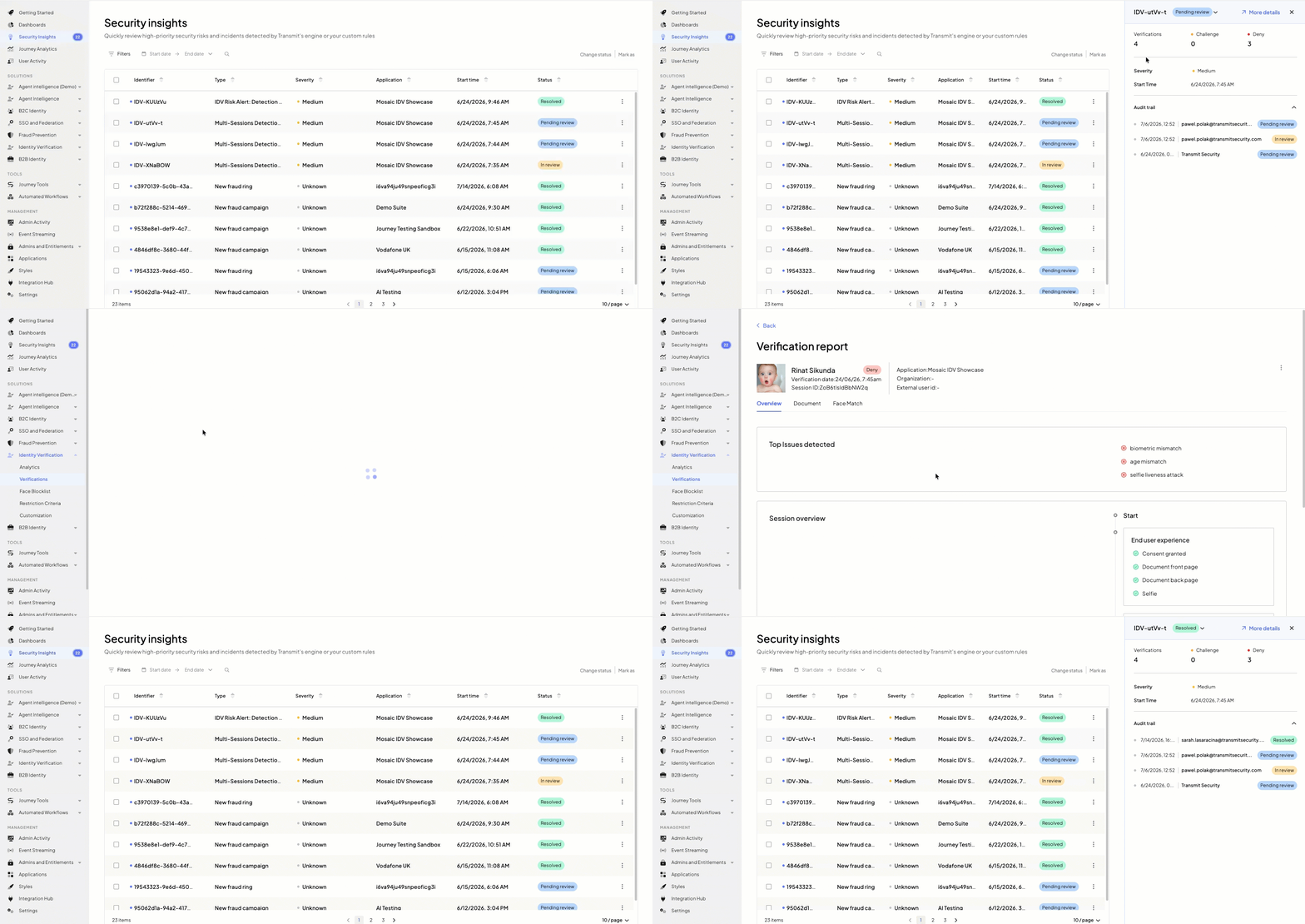
When you open an Identity Verification case from Security Insights, the side panel gives you the case-level context before you move into individual sessions. It summarizes:
- How many verifications are part of the case
- How outcomes are distributed across challenge and deny
- The severity and timing of the activity, and the audit trail for status changes.
Click More details in the panel to open the filtered Verifications page in Identity Verification. This page shows only the verification sessions linked to that case, so you can review them side by side and decide which sessions need deeper analysis first.
From the Verifications page, click any verification row to open its verification report. That report is where the investigation becomes session-specific: you can review the verification outcome, the main detected issues, the progression across document, liveness, and face-match checks, and the underlying document and selfie evidence. For a full walkthrough of the report structure, see Inspect verifications.
Use the verification report to investigate the individual sessions linked to the case and review their supporting evidence in detail. Once you have reviewed the related verifications, update the status in Security Insights to reflect the handling state of the case as a whole.