In Mosaic, you can manage access to the Admin Portal based on user role, where the role determines which permissions to give the user. For example, a fraud analyst can explore Fraud Prevention and Identity Verification data, while helpdesk personnel can only access Identity Management.
Leverage default roles and configure custom admin roles with specific permissions based on the Mosaic services. This allows you to create roles tailored to your organizational needs and provide sufficient access to your users without elevating their permissions.
Role-based access control (RBAC) is a method for restricting access to the Admin Portal based on the roles of Mosaic users. In this model, every Admin Portal user is assigned to one (or more) roles and each role is assigned permissions. These permissions will then determine the user's access to the portal and data. Role-based access control provides effective access management and better security.
Using roles for access management has many benefits, including:
- Better information security by restricting access by need, and easily adjusting access when required
- Improved compliance with regulatory and statutory requirements for confidentiality and privacy
- Reduced risk of integrating external users (such as auditors) by giving them limited access to data
Roles are created and assigned at the tenant level. Each user can be assigned multiple roles and the same permission can be granted to different roles. Therefore, the user's effective permissions will be the union of permissions of all their assigned roles for the given tenant. In case of insufficient permissions, the user will see that certain parts of the Admin Portal are disabled for them. These permissions are enforced in both the Admin Portal UI and the corresponding admin APIs.
Before enforcing access controls, you'll need to decide on a strategy that makes sense for your business.
- Check industry best practices and compliance standards for role-based access management.
- Analyze your business needs and collect requirements.
- Define roles by grouping end-users based on common responsibilities.
- Define permissions for each role—which may include permissions to modify data (e.g., read, write) and permissions to access specific parts of the Admin Portal.
- Granularity: When creating roles, consider the principle of least privilege. Only assign the permissions required for the role's responsibilities.
- Multiple roles: Take advantage of the ability to assign multiple roles to admin users, combining permissions across services.
- Regular review: Periodically review roles, permissions, and assignments to ensure they align with evolving organizational needs and security practices.
Customer support agent role for managing user accounts: A customer support team assists users with inquiries, updating user account information, and verifying identity. They need access to view and modify user data, but they should not have access to areas like fraud detection, authentication settings, or application management.
Fraud analyst role: A security team within an organization requires access to the Fraud Prevention (Detection & Response) and IDV (Identity Verification) services to monitor fraud activity, but they should not have access to other services such as Identity Management or Authentication. You can define and assign this Fraud analyst role to relevant admin users, allowing them access only to fraud detection-related tasks without exposing other services.
Mosaic administrator role for managing orchestration, Mosaic applications and SSO settings: An admin team manages different critical aspects of the Mosaic Admin Portal, such as orchestrating identity journeys, configuring application-level settings, and maintaining authentication and SSO configurations. However, these admins should not have access to Identity Management, fraud detection, or other sensitive areas like Identity Verification. To manage SSO settings, the role must also include the relevant permissions under the Settings branch; access to Authentication alone isn't sufficient.
Read-Only access role for compliance auditors: A compliance auditing team needs to view system settings, user data, fraud reports, and Identity Verification results but must not make any changes.
Mosaic enables you to manage admin users via the Admin Portal (Admins and Entitlements > Admin Roles). Currently, the platform includes three default roles:
- Global admin: Control over all tenant and apps settings, including Settings tabs
- Global reader: Read all tenant and apps settings, including Settings tabs in read-only mode
- Support: Access to all services, excluding the Management section
Review the default roles after the Settings permissions rollout and confirm that their effective access matches your intended operating model. If a team needs access to a specific Settings section that isn't covered by a default role, create a custom role or update role assignments accordingly.
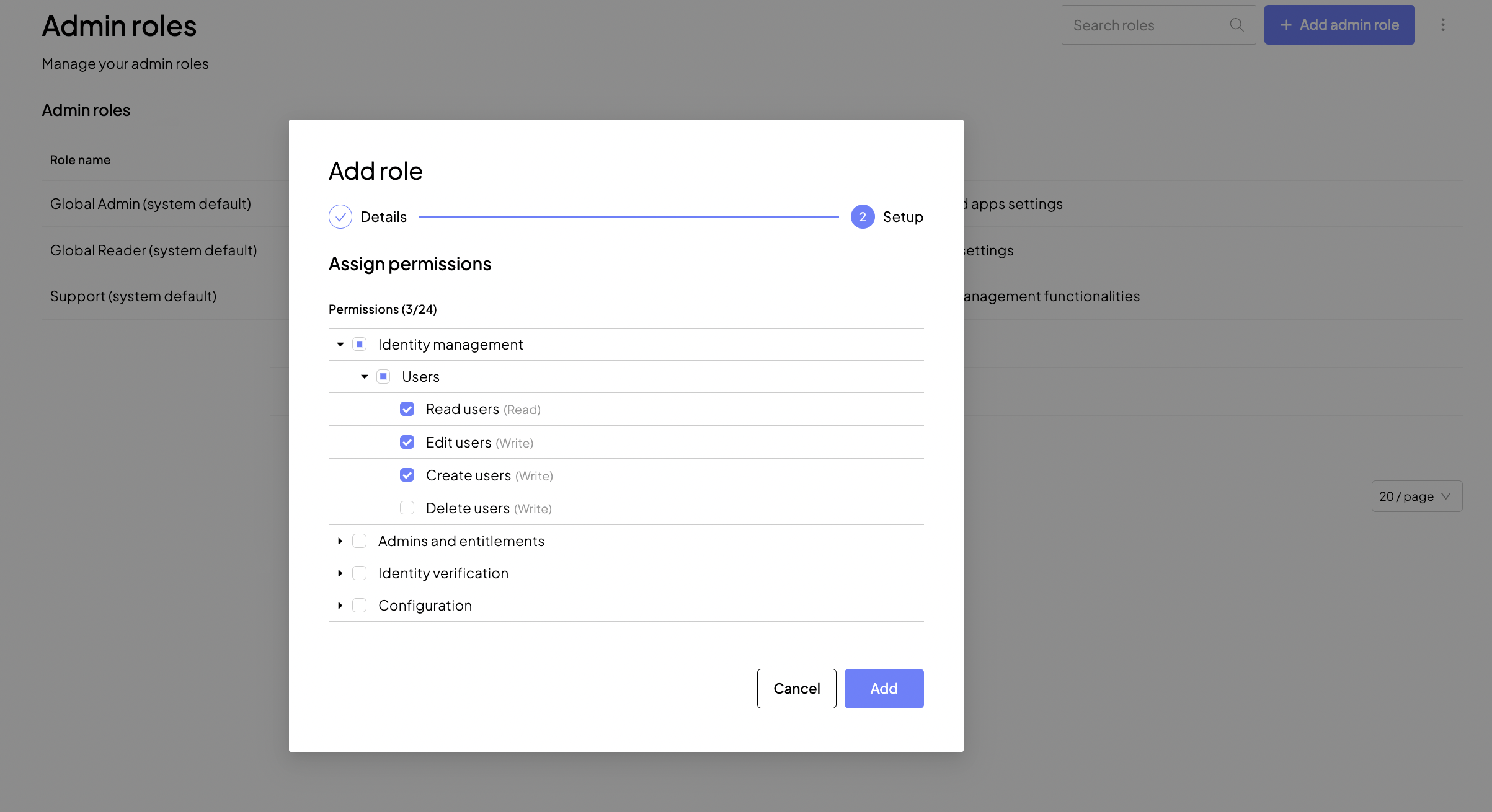
To create a custom role, select + Add admin role, and provide its name and description. Then, define permissions for this role. This permission tree follows the structure of the Admin Portal and includes two types of branches:
- Service-specific branches for product areas such as User activity, B2C Identity, SSO and federation, etc. These permissions control who can access and act within the different Mosaic modules.
- A separate Settings branch that controls who can view and modify Admin Portal configuration, with separate read and edit permissions for each Settings tab.
For example, under the Users subsection of the Identity Management service, you can grant permissions to read, create, edit, and delete users. A custom User manager role might include the first three permissions, but not delete users.
You can modify the roles you've created. To edit or delete a role:
- Edit a role and update permissions by tapping
 and then Edit.
 - Delete a role by tapping and then Delete. Before deleting a role, ensure it's no longer assigned to any admin users.
To enable your users to access the Admin Portal, proceed to Admins and Entitlements > Admin Users.
There you can invite new admin users or assign roles to existing users. Click + Add admin user, provide their email, and then select one or more roles. New accounts require validation: the users need to confirm their accounts by opening a link in the welcome email message.
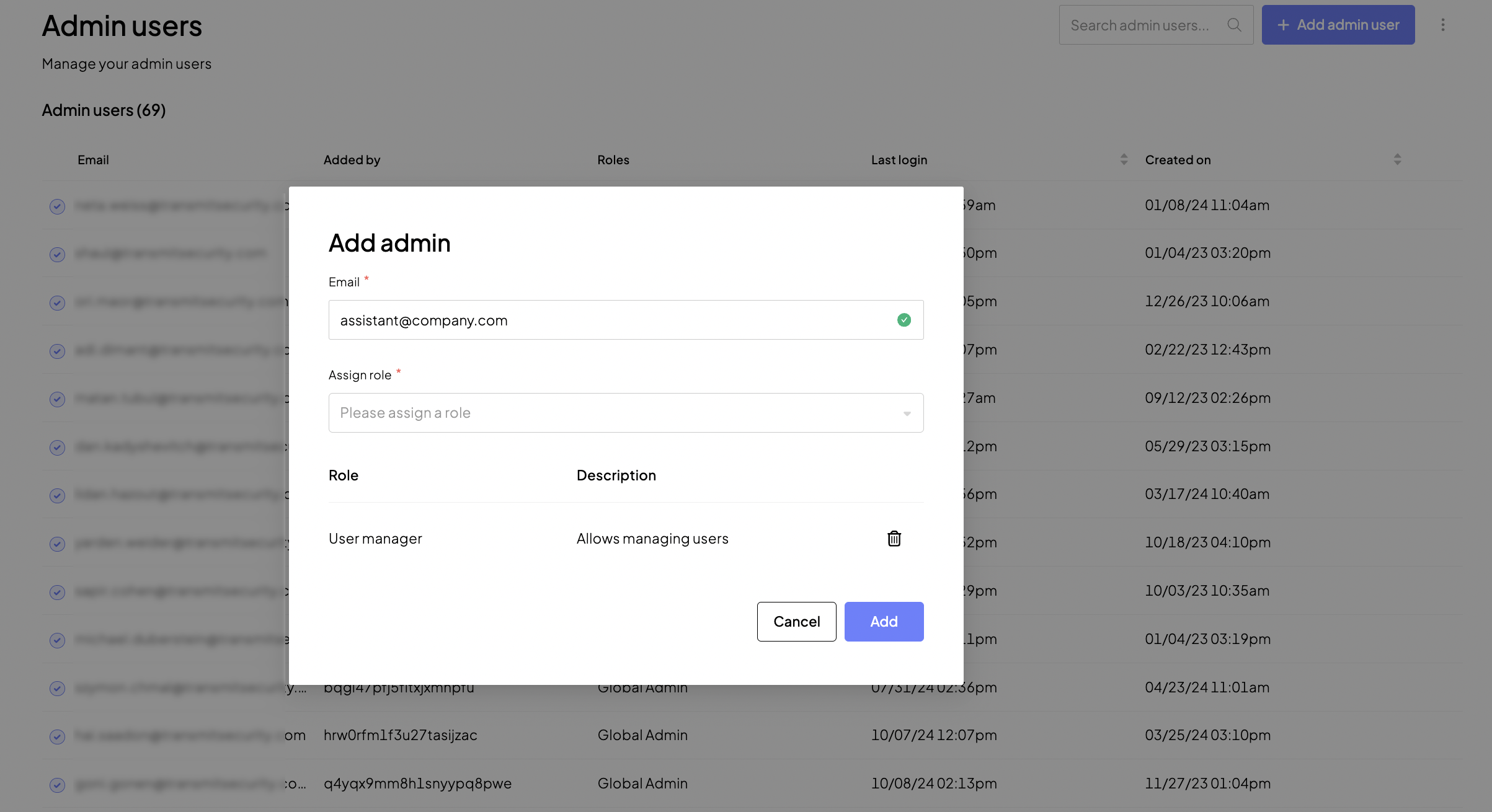
Once you assign the role to the admin user, they will gain access to Mosaic functionality as defined by the union of permissions enabled in the roles assigned to them. If a user doesn't have permission to the service, such as Fraud Prevention, an entire section in the Admin Portal will be disabled for them. Access to Settings is more granular: if a user doesn't have read access to Settings, the page won't be visible to them, and if they have read access to a specific Settings section but not the required action permissions, the section is visible but its action controls are disabled. If a role restricts a user from performing a specific action, such as deleting users, the Delete button will be disabled. In the Admin Portal, disabled functionality appears greyed out and is accompanied by a short explanation about insufficient permissions.
Regularly review your admin users in the Admin Portal (Admins and Entitlements > Admin Users) and assign or revoke roles depending on your organizational structure. Remove users that no longer need access to Mosaic.
To edit or delete an admin user:
- Edit a user by tapping and then Edit.
- Revoke a role or assign a new role by tapping and then Edit.
- Delete a user by tapping and then Delete.
Recovery admins are designated when you configure SSO to Admin Portal. Mosaic also prompts you to specify at least one recovery admin when you enable IP allowlisting for the first time. During SSO setup, selecting or updating recovery admins requires edit access to Settings > Single Sign-on. Recovery admins serve as fallback accounts that can access the Admin Portal when normal login is restricted, and they are marked with a Recovery admin badge in the admin users list.