Follow the steps below to configure this scenario. The linked guides provide additional field descriptions and implementation details.
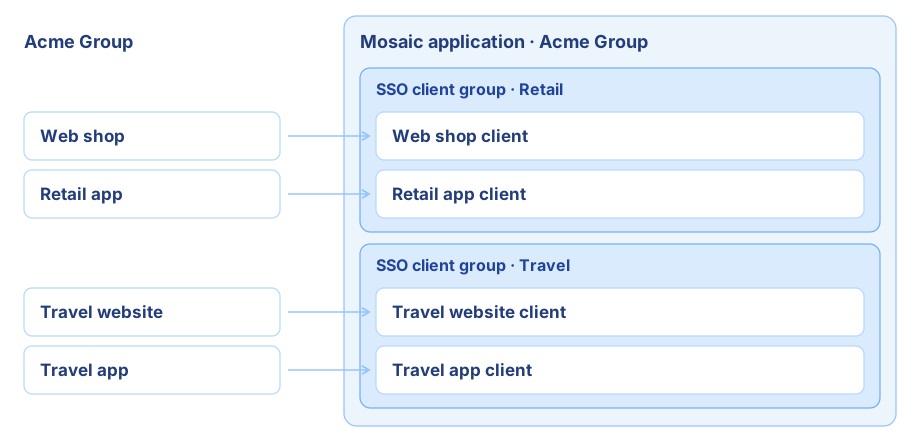
Real-life example: Acme Group runs two business units, each with a website and a mobile app: a retail brand, with a web shop and a retail app, and a travel brand, with a travel website and a travel app. Customers use one Acme account everywhere. Signing in to the web shop also signs them in to the retail app, which signs users in through a browser redirect, but the travel brand asks them to sign in separately.
Use case: several apps for the same users, organized in groups. Users use the same account across all apps. Signing in gives them SSO access within one group; other groups require a separate login.
Resulting structure: one Mosaic application containing all clients, one user authentication client per app integration, and one SSO client group for each set of apps that should share browser sessions.
See Choose a setup for your use case to compare all setups.
List the apps and decide which ones share a browser session. Each set becomes an SSO client group. For each mobile app, decide how it signs in: through a browser redirect (OIDC Native app client in its business unit's SSO client group, sharing that group's session) or in-app (backend-based client, with no SSO client group). Have the redirect URI (OIDC, including native apps) or ACS URL and Entity ID (SAML) of each app ready. Choose the login methods for the journeys you will create.
In the Admin Portal, go to Applications and create one Mosaic application for all the apps. See Create Mosaic applications. Clients in the same Mosaic application share the user pool, so a user has one account across all groups.
Configure the authentication methods your users will use in the Mosaic application’s Authentication methods tab. For the settings and prerequisites of each method, follow Customize login methods.
The Mosaic application keeps one account per user across all apps. The SSO client groups decide where that login is reused: create one group for each set of apps that should share a browser session, for example one per business unit. Using separate Mosaic applications instead would give users separate accounts in each business unit.
Create the SSO client groups. In Applications > Application > Clients > SSO client groups, select + Add SSO client group for each set of apps, and configure:
- SSO client group name: a name that identifies the group.
- Login screens: Hosted by Transmit Security for Mosaic-hosted pages, or Self managed (Custom UI) for a page you host.
- Login page URL: for self-managed screens, the address of the page you host. For hosted screens, Mosaic generates the URL; to show users a URL on your own domain, enter a custom login page URL. See Configure custom domains.
- Session timeout: how long the group's session stays valid. Default: 14 days, up to 1 year.
Save the group. See Configure SSO.
Create the SSO journey. In B2C or B2B Identity > Journeys, select Add blank journey and choose SSO-Journey. Build the login flow with the authentication methods configured in Step 1, then save the journey. You can also reuse an existing SSO journey. The Journeys section of Configure SSO explains where SSO journeys are created and how clients select them.
Add an SSO session validity step to the journey. Route users with a valid group session past credential collection, and users without one through the authentication steps. See SSO session validity and SSO journeys.
For a step-by-step example using Mosaic-hosted screens and email OTP, follow Create an SSO journey with the Mosaic-hosted experience. Adapt the journey by adding or replacing steps to match your authentication methods and login requirements.
In Applications > Application > Clients, select + Add client and choose User authentication client. Add one client per web app, configured for OIDC or SAML, and complete the wizard in the matching tab.
- General: enter the client name and description.
- Authentication flow: leave Does your login use OIDC or SAML authentication? enabled, select OIDC and Client type Web app, and enter the web app's Redirect URIs.
- Login Experience: select Journey-orchestrated, the SSO client group of the set the web app belongs to, and the SSO journey for this web app. For Mosaic-hosted screens, select a Style or use the default Mosaic style. See Manage styling for the Mosaic-hosted SSO experience.
- Advanced settings: choose the client authentication method and review token lifetimes. See OIDC advanced settings.
- Client roles: select the roles the client needs to call Mosaic APIs. If you don't select a role, the client implicitly receives the App Admin role. See Manage client roles.
Save the client. Mosaic generates the client ID and the credentials for the selected authentication method; they're available from the client details page. For all fields, see Configure an OIDC client.
Add one client per mobile integration. In Applications > Application > Clients, select + Add client, choose User authentication client, and complete the wizard in the tab that matches how the mobile app signs in.
- General: enter the client name and description.
- Authentication flow: leave Does your login use OIDC or SAML authentication? enabled, select OIDC and Client type Native app, and enter the app's Redirect URIs. Native app redirect URIs use HTTPS or a reverse-domain custom scheme.
- Login Experience: select Journey-orchestrated, the SSO client group of the set the mobile app belongs to, and the SSO journey from Step 2. For Mosaic-hosted screens, select a Style or use the default Mosaic style. See Manage styling for the Mosaic-hosted SSO experience.
- Advanced settings: choose the client authentication method and review token lifetimes. Configure PKCE support; see Configure PKCE settings. See OIDC advanced settings.
- Client roles: select the roles the client needs to call Mosaic APIs. If you don't select a role, the client implicitly receives the App Admin role. See Manage client roles.
Save the client. Mosaic generates the client ID and the credentials for the selected authentication method; they're available from the client details page. For all fields, see Configure an OIDC client. Keep any client secret in your backend, not in the mobile app.
Integrate each app with its own client, using the tab that matches its type.
Send an authorization request with the client ID and redirect URI, exchange the returned code for user tokens from your backend, and validate the tokens before creating the app's local session. See Launch OIDC SSO with the Mosaic-hosted experience and Validate tokens.
If an SSO client group uses Self managed (Custom UI), build the login page with the Mosaic Platform SDK, which runs the SSO journey, and host it at the group's Login page URL. See Build your SSO page.
Mosaic shares a browser session only between clients in the same SSO client group. To log users out, end their SSO session with SSO session logout. For backend-based clients, implement session renewal and logout using Manage backend sessions.
To test login, use a user who belongs to this Mosaic application. Create one from Users > + Add Users, enter an email address, and select this Mosaic application. See Manage users. A login method based on email OTP can sign this user in; for passwords or passkeys, the user must register the credential first.
- Sign in to an app in the first group.
- Open another app in the same group. The user isn't asked for credentials again.
- Open an app in a different group. The user must sign in, using the same account and credentials.
- Sign in to a backend-based mobile app, if any. The user authenticates with the same account, but doesn't reuse a group's browser session.
A browser can hold a separate SSO session for each group. See SSO sessions.