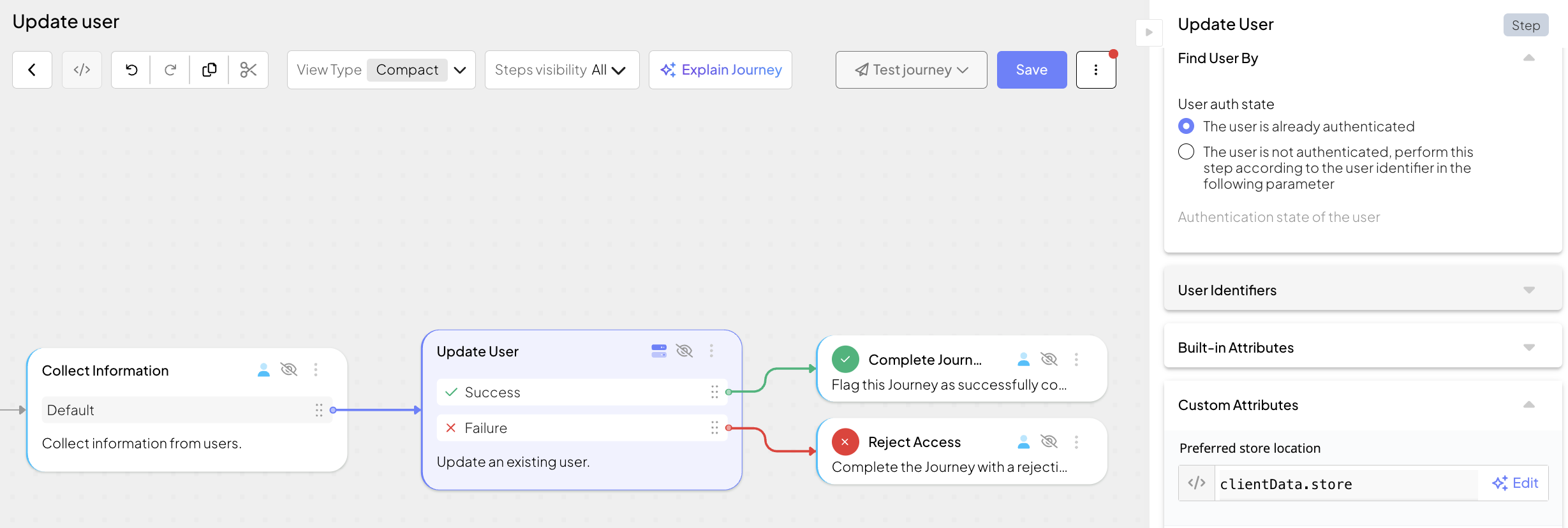
Updates a user profile in Mosaic
This step is used to update a user's profile in Mosaic. It is commonly used after collecting new user information during a journey (for example, profile completion, onboarding, or account recovery) and saving those updates to the user's profile.
The user context for the step may be provided implicitly by the journey if the user is already authenticated; otherwise, a user identifier must be specified in the step configuration. The user can be located by any supported identifier (for example, email, phone number, username, external user ID, or a custom identifier, if configured for B2C users in your tenant).
If the step is successfully completed, the updated user profile is stored in the output variable and the journey continues. If it fails, the journey proceeds according to the configured failure behavior.
| Field | Description |
|---|---|
| User auth state | Indicates if the user has authenticated in this journey. If the user is authenticated (default), the user context is provided implicitly by the journey. If not, a user identifier must be configured. |
| Identifiers | Only configured if the journey doesn't authenticate the user before invoking this step. Can be an external user ID, email, phone number, username, or a custom identifier, if configured for B2C users in your tenant. |
| User identifiers - Identifier value | User identifier, specified as an expression. |
| User identifiers - External user ID | Expression that yields the external user identifier used in orchestration. It is unique at the tenant level. |
| User identifiers - Email | Expression that yields the user's main email address. It is unique at the tenant level. |
| User identifiers - Phone | Expression that yields the user's main phone number in E.164 format. It is unique at the tenant level. |
| User identifiers - Username | Expression that yields the user's username, commonly used in username and password authentication. It is unique at the app level. |
| User identifiers - (Custom) | (Only B2C Identity) Expression that yields the value for the custom identifier defined in the user schema. It is unique at the tenant level. For more about custom identifiers, see Customize user schema. |
| Built-in attributes | Includes expressions that yield various user profile details, such as first and last name, title, country, city, language, birthday, secondary emails and phone numbers. |
| Custom attributes | (Only B2C Identity) Includes expressions that yield various user profile details defined as custom attributes in the user schema for your tenant. The list changes dynamically based on the user schema. For more about custom attributes, see Customize user schema. |
| Error output variable | Name of the variable that stores any errors returned by the step. |
| Output variable | Name of the variable that stores the result object returned by the step. |
| Failure behavior | Determines the behavior in case of failure: proceed to a failure branch of the control flow (default) or abort the journey. |
Some built-in attributes belong to nested objects, such as the user's name (Title, First name, Middle name, Last name) and address (Country, State, City, Street address, Postal code, Address type). When you update a nested object, it's replaced as a whole rather than merged—any subfields you don't set are cleared. This is consistent with the Update user API behavior.
To preserve existing values, first retrieve the current profile using the Get User step, and then map the subfields you want to keep to their current values in the Update User step. For example, if you're only updating the first name, set the title and last name to the values returned by Get User (such as get_user_output.result.name.title and get_user_output.result.name.last_name).
This step can be configured to record step input and output data, or a custom payload, which is then surfaced in journey events in Journey Analytics for diagnostic purposes. For details, see Additional data reporting.
Suppose a user wants to update their record. The journey collects profile attributes (for example, user's first name and last name, and their preferred store location) using the Collect information step and store them in clientData (clientData.lastName, clientData.firstName, clientData.store) You can then use Update User step to modify the user's profile.
Assuming the user has already authenticated in the flow, you can set the variables to user profile fields. In our example, the user's first name and last name are built-in attributes, and preferred store location is a custom attribute defined in our tenant configuration.
If the step succeeds, the updated user profile is available in update_user_output for subsequent steps (for example, to display a confirmation message or to continue with a personalized flow). For example, the preferred store location, which is a custom attribute, is accessible via update_user_output.result.custom_user_fields.preferredStoreLocation.