Mosaic allows authenticating users with time-based one-time passcodes (TOTP) which are unique one-off numeric codes generated by authenticator apps (Google Authenticator, Microsoft Authenticator, Twilio Authy, and others). The passcodes are short-lived and typically change every 30 seconds making the TOTP authentication hard to compromise.
You can leverage TOTP as a stand-alone passwordless authentication solution, but it's mainly used as a second factor in MFA or with user actions that affect sensitive resources, such as their payment data or personal records, and require an additional layer of security.
This guide explains how to implement TOTP authentication using Journeys and SDKs.
The TOTP authentication relies on the static secret (seed) and passcode validity. To use the TOTP for the first time, one has to register the TOTP authenticator with Mosaic and connect it to an authenticator app. Mosaic uses the TOTP authenticator to validate codes that are generated by the authenticator app. Depending on the app settings, a user can register one authenticator per application or multiple authenticators. Once set, a user can proceed to log in using time-based passcodes generated by the authenticator app.
The client invokes a journey that prompts the user to provide their user identifier (alternatively, to log in) and specify a meaningful label for the TOTP authenticator. Upon reaching the Register TOTP step, Mosaic checks the number of active TOTPs per user and, if possible, proceeds to registration.
Depending on your app settings, Mosaic applies custom logic to registering new TOTPs:
Single-TOTP configuration
- Registers a TOTP unless a user has another active TOTP.
- If there is a TOTP associated with the user, Mosaic can either block registration or override the existing TOTP (as configured in the Register TOTP step).
Multiple-TOTP configuration
- Registers a new TOTP as long as the user has not reached the limit.
- Once the limit is reached, Mosaic will block registration of new TOTPs.
Mosaic generates and returns the static secret that will be used to generate TOTP codes for authentication. The app then provides the secret to the user, for example, by displaying the returned uri as a QR code. The user scans the QR code using their authenticator app, and indicates to your app once they're done.
As part of the login journey, Mosaic prompts a user to input a passcode generated by the authenticator app. Once the code is received, Mosaic validates it against all active TOTPs. If successful, the journey completes and the user is set as authenticated.
If this is your first time integrating with Mosaic, create an application in the Admin Portal as described here.
The flow assumes that the user already exists in Mosaic. Add a new user if necessary.
The flow assumes that the user has already downloaded an authenticator app (Google Authenticator, Microsoft Authenticator, Twilio Authy, and others) on their mobile device and created an account. To build a custom authenticator app, see Custom TOTP generator (iOS) and Custom TOTP generator (Android).
By default, the passcode includes 6 digits and changes every 30 seconds. The authenticator settings (Admin Portal > Applications > your app > Authentication methods) allow you to:
- adjust the passcode behavior
- define the maximum number of TOTP authenticators allowed per user
- configure the lockout policy in case of repeated failed attempts (see Lockout policies)
Once you've configured the lockout policy, you may also implement logic to unlock the authenticator in case it locks. Use the Unlock authenticators API to reset a locked authenticator.
For more about this authenticator, see Customize login methods.
In the Admin Portal, go to B2C Identity or B2B Identity based on your setup, and open the Journeys section. Create two separate journeys—one for the registration journey and one for the authentication journey.
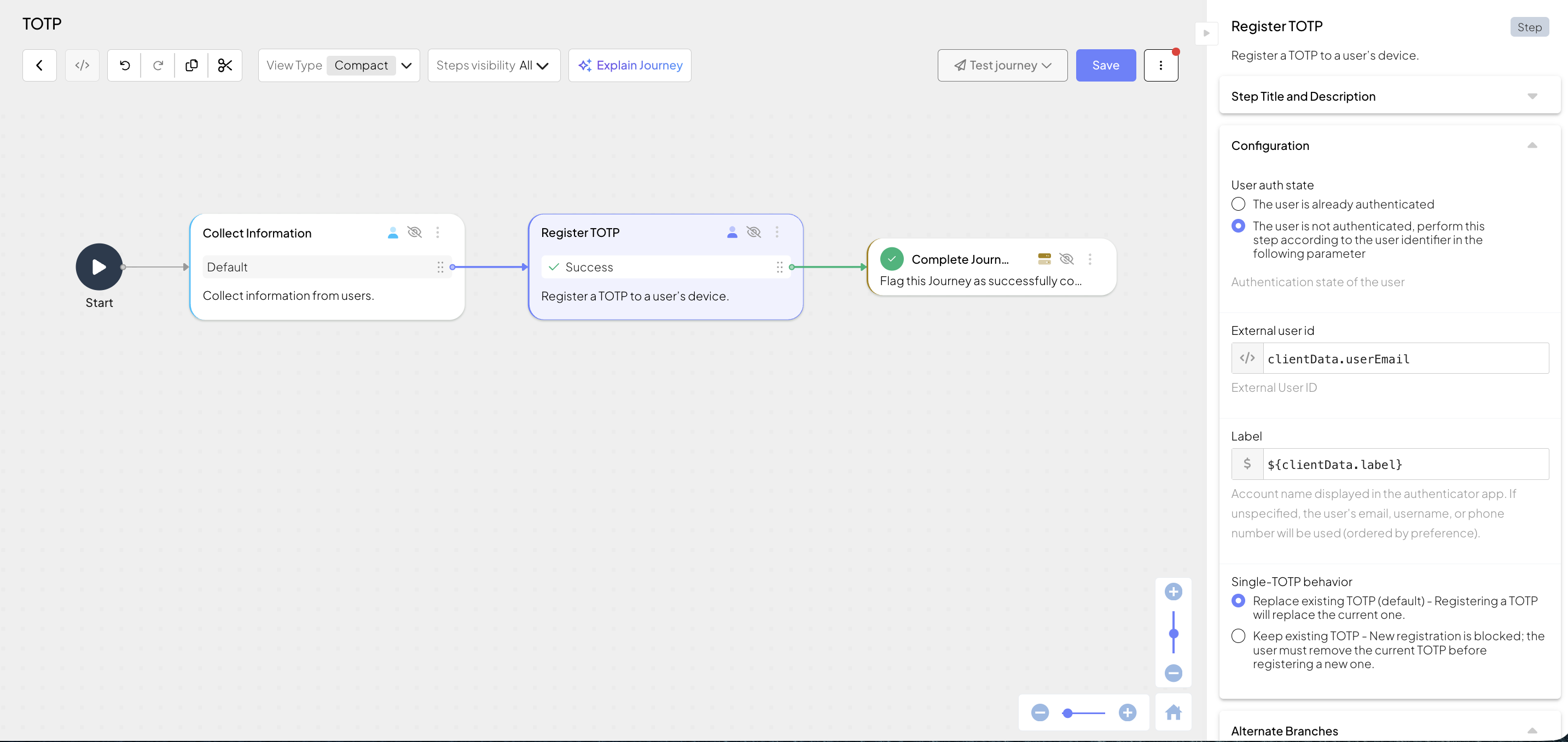
This client SDK journey collects any required user information and registers a TOTP authenticator for the user, so they can use TOTP codes for future authentication flows. It can include the following actions:
- Collects information from the user (Collect information step), including a user identifier and a label to distinguish TOTPs later. These inputs are stored in the output variable to be used in the next step. Alternatively, authenticate the user first using any other authentication method.
- Optionally, registers a device for the user (Register or Update Device step).
- Registers a TOTP authenticator for the user (Register TOTP step).
- This step uses the user identifier collected in a previous step.
- Configure the Device source to associate the registering device with the authenticator by providing the device ID. This helps you gain visibility into authenticator usage across devices and maintain a list of recently used devices (see How devices work).
Configure single‑TOTP behavior if the app allows only one TOTP per user—either override the existing authenticator or block registration and proceed to the failure branch. If your app allows multiple TOTPs per user, this setting is irrelevant. For more details about registration logic, see How it works: registration.
- Depending on results, successfully completes the journey (Complete journey step) or rejects access (Reject access step).
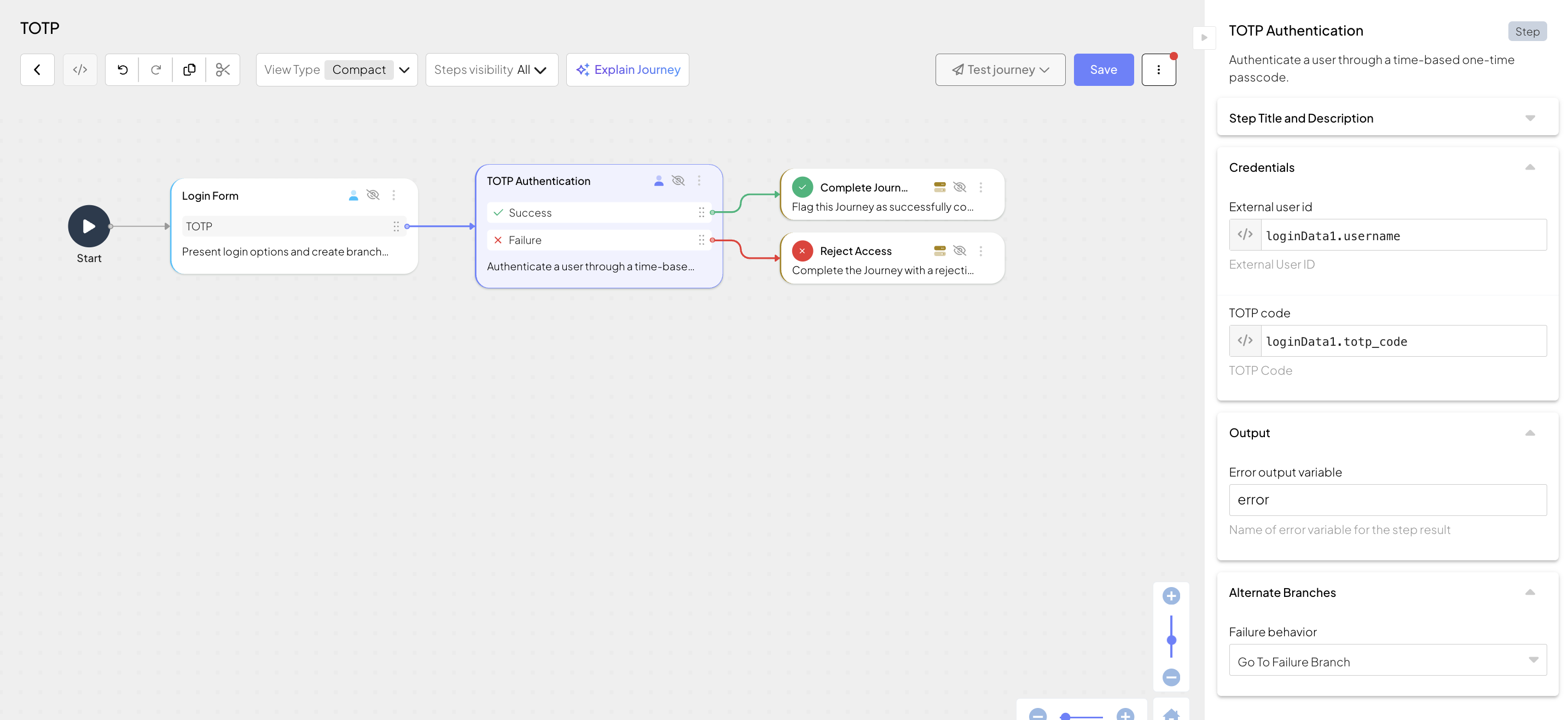
This client SDK journey logs in the user using a TOTP code generated by their authenticator app. It can include the following actions:
- Displays a login form with an enabled TOTP authentication option (Login form step). Obtains input from the user (username and passcode), which is then saved in the output variable.
- Authenticates the user using the TOTP code (TOTP Authentication step) obtained in a previous step. If successful, this step sets the user context. You can configure the Device source to provide the device ID, which helps maintain a list of recently used devices per authenticator (see How devices work).
- Depending on results, successfully completes the journey (Complete journey step) or rejects access (Reject access step).
To run this flow, your integration needs the Orchestration SDK.
Implement the client-side code needed to complete your journeys on the device. In a nutshell, you have to implement:
For example, implement a switch (or other routing mechanism) that invokes a handler responsible for a specific journey step (returned in idoServiceResponse.journeyStepId parameter). Each handler processes data, displays whatever UI is needed, and calls submitClientResponse() when the interaction is concluded.
The journey loops back to the switch unless Mosaic signals journey completion by setting the journeyStepId property to Rejection.type or Success.type. The idoServiceResponse.token property contains a JWT token as a proof of journey completion.
For more guidance on mobile development with the Orchestration SDK, refer to these quickstarts: Web, Android or iOS.
Implement a handler that starts the journey. Use the following call to start the journey:
// If SDK was loaded via script tag, invoke functions inside 'window.tsPlatform'
const idoResponse = await ido.startJourney(
      'YOUR_JOURNEY'
);Implement obtaining user's email as identifier and label for authenticator. This handler is invoked when the idoServiceResponse object includes journeyStepId matching the ID of the Collect Information step (e.g., get_info_from_client_1).
For example, your application should present a form that collects a user email and TOTP label and pass them to the Orchestration SDK. For more details, see Collect information.
Implement registering a TOTP authenticator. This handler is invoked when the idoServiceResponse object includes journeyStepId set to TotpRegistration. It should embed the uri returned by the Orchestration SDK in a QR code for the user to scan with their mobile app. Once completed, it sends an empty response to the journey.
The authenticator registration is considered complete as soon as a secret is created. If the user chooses not to set up an authenticator app at this time, the secret will remain associated with this user anyway.
    // If SDK was loaded via script tag, invoke functions inside 'window.tsPlatform'
    ido.submitClientResponse(
        ClientResponseOptionType.ClientInput
)Implement obtaining a user's identifier and passcode. This handler is invoked when the idoServiceResponse object includes journeyStepId matching the ID of the Login Form step (e.g., authentication).
For example, your application should present a form that collects a user email and passcode and pass them to the Orchestration SDK. For more details, see Login Form.
- Update your journeys to use TOTP as a second factor in MFA flows.
- Consider implementing fallback authentication methods for users who lose access to their authenticator app.
- Implement the ability to revoke TOTP registrations. This capability is necessary when the user has reached the TOTP limit and new registrations are blocked. Let users choose the authenticator to deregister. First implement the "User Authenticators: User authenticators API" step to locate available authenticators, then let the user choose the one to revoke by its label, for example, using a form. Then use the Revoke my TOTP step to deregister a TOTP authenticator.
- Implement transaction signing with TOTP by swapping the TOTP Authentication with the Transaction signing with TOTP step. Pass along the transaction details for the user to approve. The approval data is a JSON object, its fields may include expressions.
{
  "data": {
    "transaction_challenge": "123456",
    "approval_data": {
      "transactionId": "TX12345",
      "amount": "1500.00",
      "currency": "USD"
    }
  }
}